BrightCell
How to use a budget spreadsheet in Google Sheets
A step-by-step guide to opening an Excel budget template in Google Sheets, entering income and expenses, and keeping it up to date.
1. Open the file in Google Sheets
Go to sheets.google.com and sign in. If you received an Excel (.xlsx) file, choose File → Import → Upload, or upload it to Google Drive and open it with Google Sheets. If you received a Google Sheets link, open it and choose File → Make a copy so you have your own editable version.
2. Start with your income
Find the income section and enter each source of money you expect for the month (paychecks, side income, etc.). Use the amount you actually receive after taxes so your plan matches your bank account.
3. List your expenses by category
Add fixed bills first (rent, utilities, subscriptions, loan payments), then variable spending such as groceries, fuel and entertainment. Only type into the input cells; cells with formulas calculate totals for you, so avoid overwriting them.
4. Try a simple framework
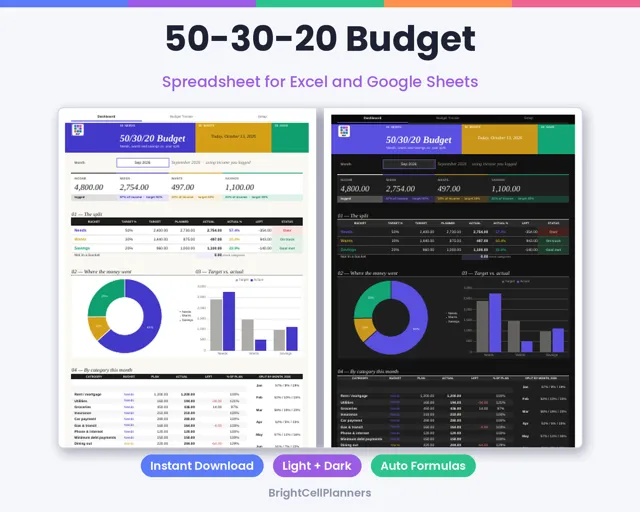
The 50/30/20 approach splits after-tax income into needs (50%), wants (30%) and savings or debt payoff (20%). It is a starting point, not a rule; adjust the split to fit your situation.
5. Track as you go
Set a short weekly reminder to enter what you spent. Comparing planned and actual amounts each week makes it easier to spot categories that need adjusting before the month ends.
6. Use it on your phone
Install the Google Sheets app to update your budget on the go. Changes sync automatically with the version on your computer.